> ## Documentation Index
> Fetch the complete documentation index at: https://docs.b3.fun/llms.txt
> Use this file to discover all available pages before exploring further.

# How to Swap Tokens

> Learn how to swap tokens across different networks using B3's built-in multi-chain swap interface

With built-in multi-chain support, you can swap tokens across different networks, all from one simple interface. Whether you're preparing for a mint, consolidating assets, or moving between chains, this guide walks you through how to swap one token for another.

## How to Swap Tokens

<iframe className="w-full aspect-video rounded-xl" src="https://www.youtube.com/embed/yRR2rGiJmNM" title="How to swap tokens using AnySpend" frameBorder="0" allow="accelerometer; autoplay; clipboard-write; encrypted-media; gyroscope; picture-in-picture" allowFullScreen />

<Steps>
  <Step title="Navigate to the bridge">
    Log in to your account at [basement.fun/bridge](https://basement.fun/bridge).
  </Step>

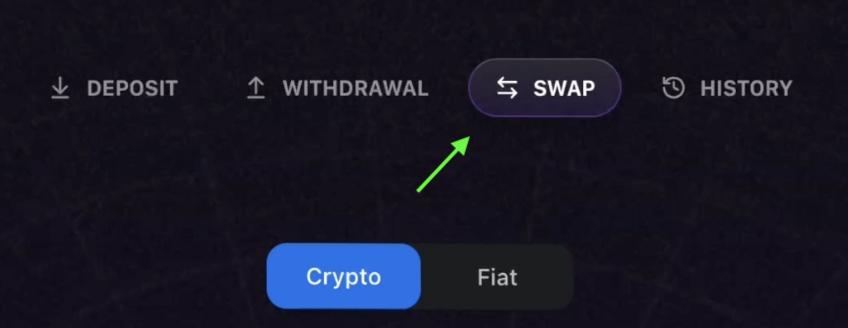
  <Step title="Select swap tab">
    Locate the tab labeled **Swap** and select it.

    <Frame>
      <img src="https://s3.amazonaws.com/helpscout.net/docs/assets/685306b72e0550277aa9250e/images/687a3cc99edbd635c194ae4e/file-ydx5TQm38i.png" alt="Swap tab highlighted in the interface" />
    </Frame>
  </Step>

  <Step title="Configure swap parameters">
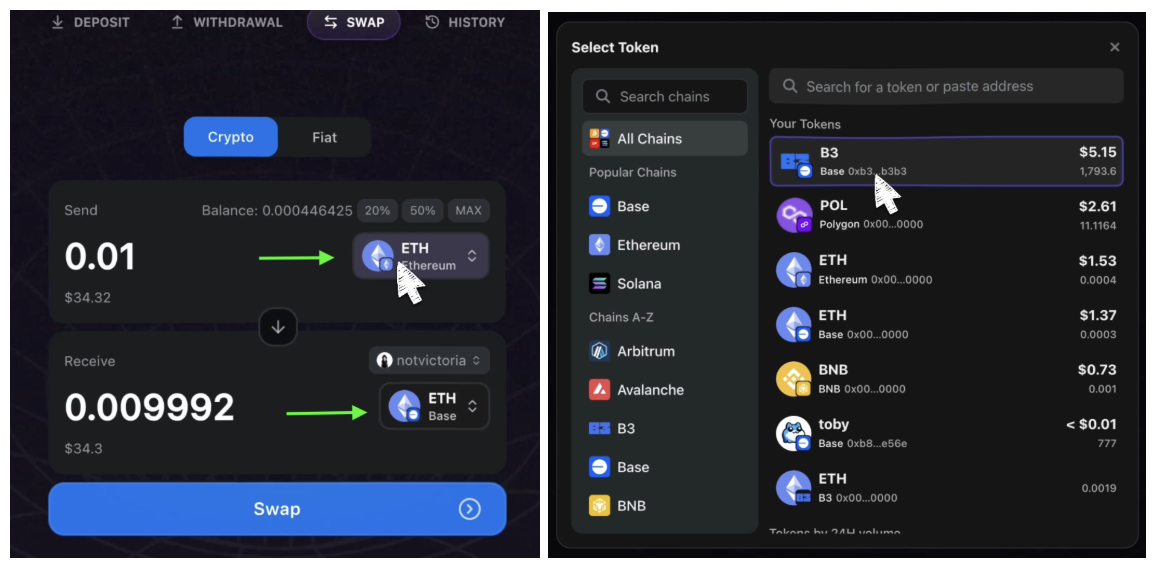
    Select the token you want to swap from and the token you want to receive, the token amount, and the chain.

    <Frame>
      <img src="https://s3.amazonaws.com/helpscout.net/docs/assets/685306b72e0550277aa9250e/images/687a3d989edbd635c194ae54/file-sJhIyucG4b.png" alt="Swap configuration interface showing token selection and amounts" />
    </Frame>
  </Step>

  <Step title="Review and confirm">
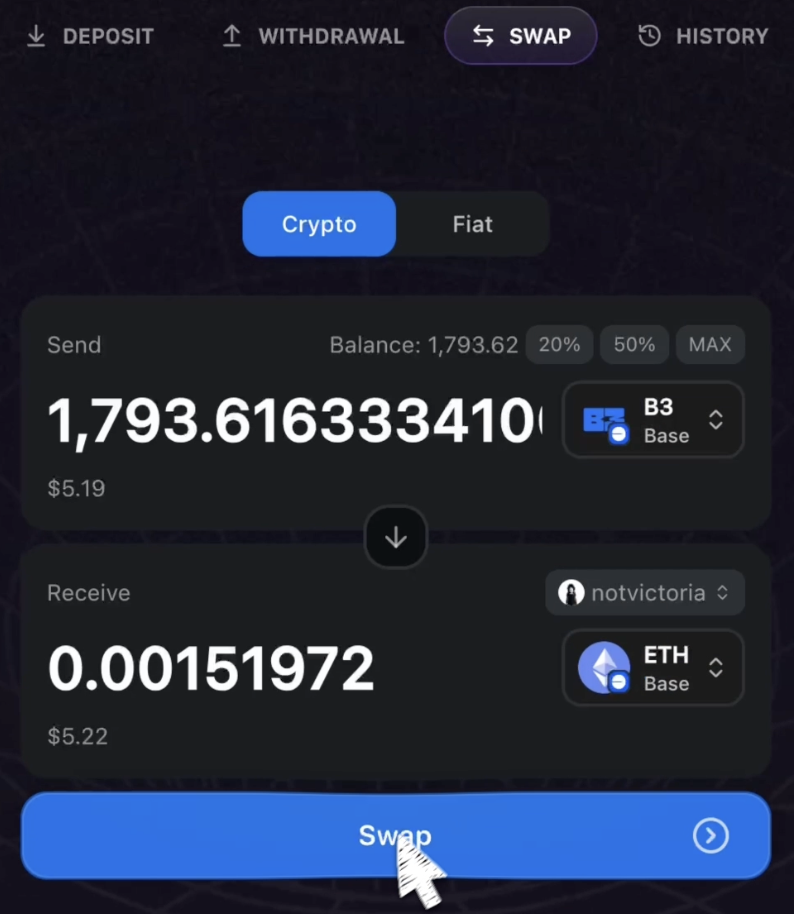
    Review and confirm that you have selected the correct token and amounts, and then click **Swap**.

    <Frame>
      <img src="https://s3.amazonaws.com/helpscout.net/docs/assets/685306b72e0550277aa9250e/images/687a3de289160479c2033244/file-er9wrb4lV0.png" alt="Swap confirmation dialog with transaction details" />
    </Frame>
  </Step>

  <Step title="Choose payment method">
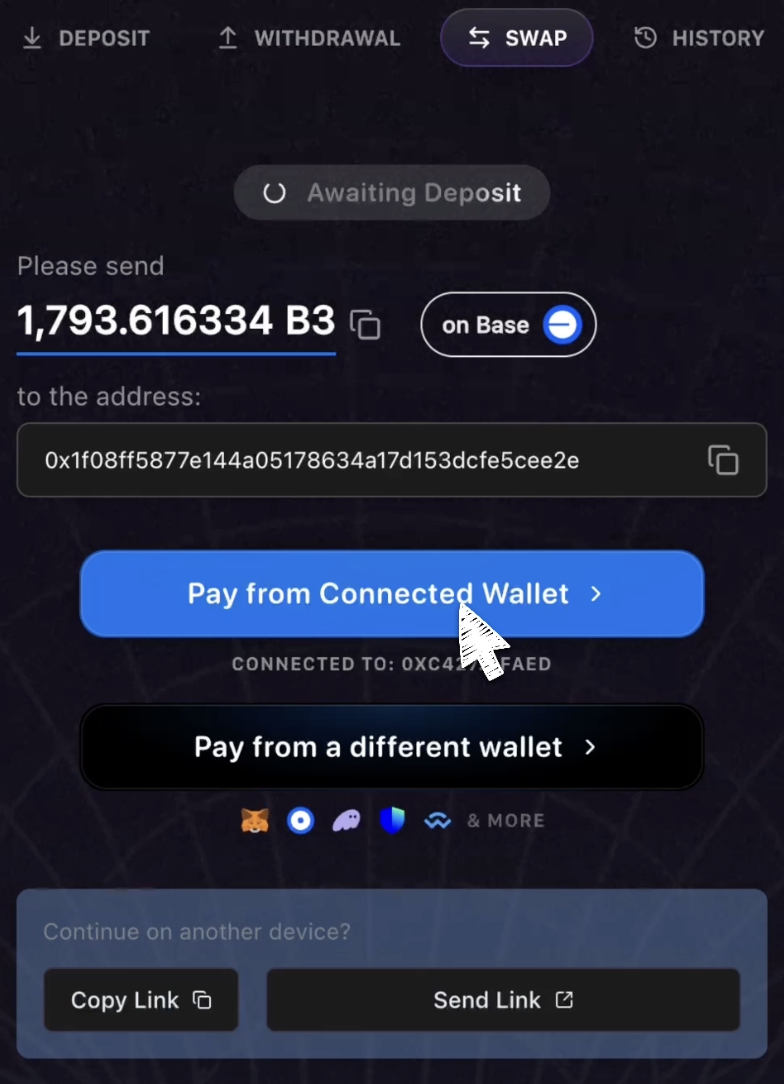
    Click **Pay from Connected Wallet** or **Pay from a different wallet** if you wish to use a different wallet from the one you have currently connected.

    <Frame>
      <img src="https://s3.amazonaws.com/helpscout.net/docs/assets/685306b72e0550277aa9250e/images/687a3e668846474f1e1f51c5/file-tT5qj1gJ4x.png" alt="Payment method selection dialog" />
    </Frame>
  </Step>

  <Step title="Complete the swap">
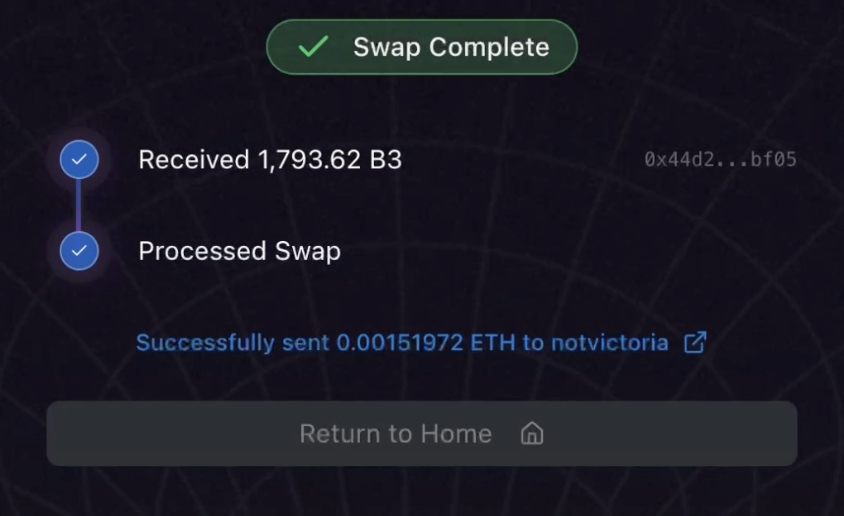
    Confirm the transaction in your wallet to complete the swap. Your swap may take up to a minute to process.

    <Frame>
      <img src="https://s3.amazonaws.com/helpscout.net/docs/assets/685306b72e0550277aa9250e/images/687a3f268846474f1e1f51ca/file-KEF1UyFd7B.png" alt="Final transaction confirmation in wallet" />
    </Frame>

    <Check>
      Your swapped tokens will appear in your wallet once the transaction is processed.
    </Check>
  </Step>
</Steps>

<Tip>
  Swaps are processed quickly, but during periods of high network activity, transactions may take a bit longer to complete.
</Tip>