> ## Documentation Index
> Fetch the complete documentation index at: https://docs.b3.fun/llms.txt
> Use this file to discover all available pages before exploring further.

# How to Customize Your Basement Profile

> Learn how to personalize your Basement profile with custom avatars, usernames, themes, and hand-drawn signatures

Your Basement profile is your digital identity on the Basement platform. You can customize your avatar, choose a unique name, and display a badge that represents your style. Whether you're setting things up for the first time or updating your look later, personalizing your profile helps you stand out and feel more connected.

## Customizing Your Profile for the First Time

<iframe className="w-full aspect-video rounded-xl" src="https://www.youtube.com/embed/I0hlZHpeNaA" title="How to customize your profile for the first time" frameBorder="0" allow="accelerometer; autoplay; clipboard-write; encrypted-media; gyroscope; picture-in-picture" allowFullScreen />

<Steps>
  <Step title="Open the account menu">
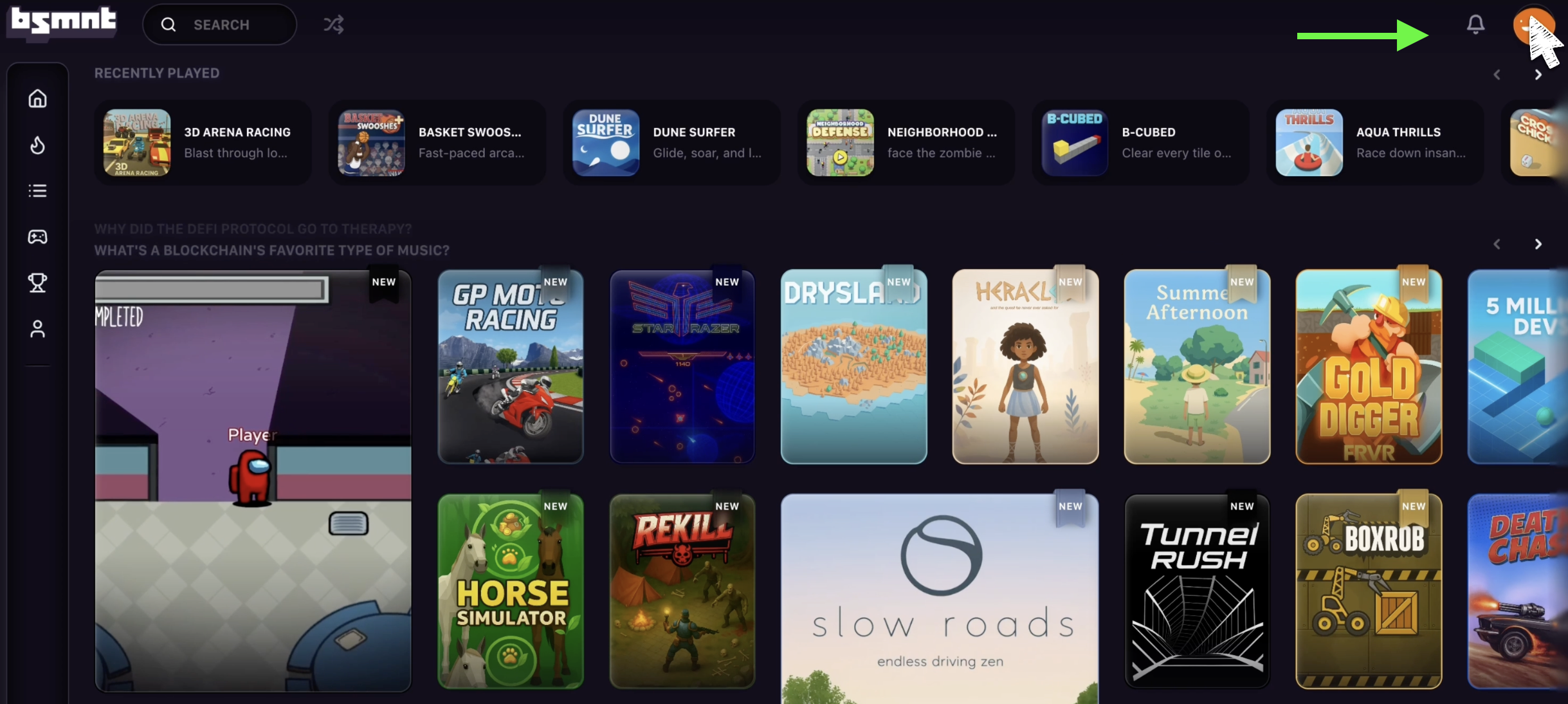
    Click your avatar in the top right corner to open the account menu.
    <Frame>
      ![User avatar in top right corner of interface](https://s3.amazonaws.com/helpscout.net/docs/assets/685306b72e0550277aa9250e/images/6878eb85522f451361e7f954/file-tG5tN1GNTT.png)
    </Frame>
  </Step>

  <Step title="Register your name">
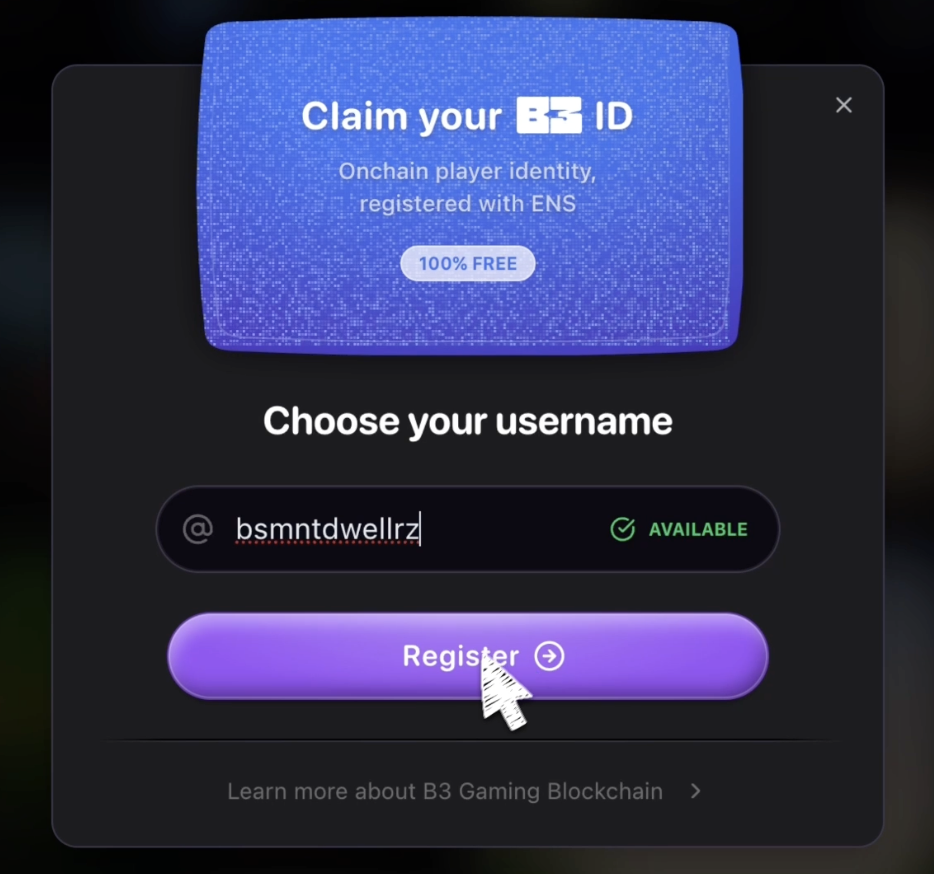
    Enter your desired name, and then click **Register**.
    <Frame>
      ![Name registration dialog](https://s3.amazonaws.com/helpscout.net/docs/assets/685306b72e0550277aa9250e/images/6878ec1a13d950405eff6e87/file-WPlAB5IC8k.png)
    </Frame>
  </Step>

  <Step title="Customize your avatar">
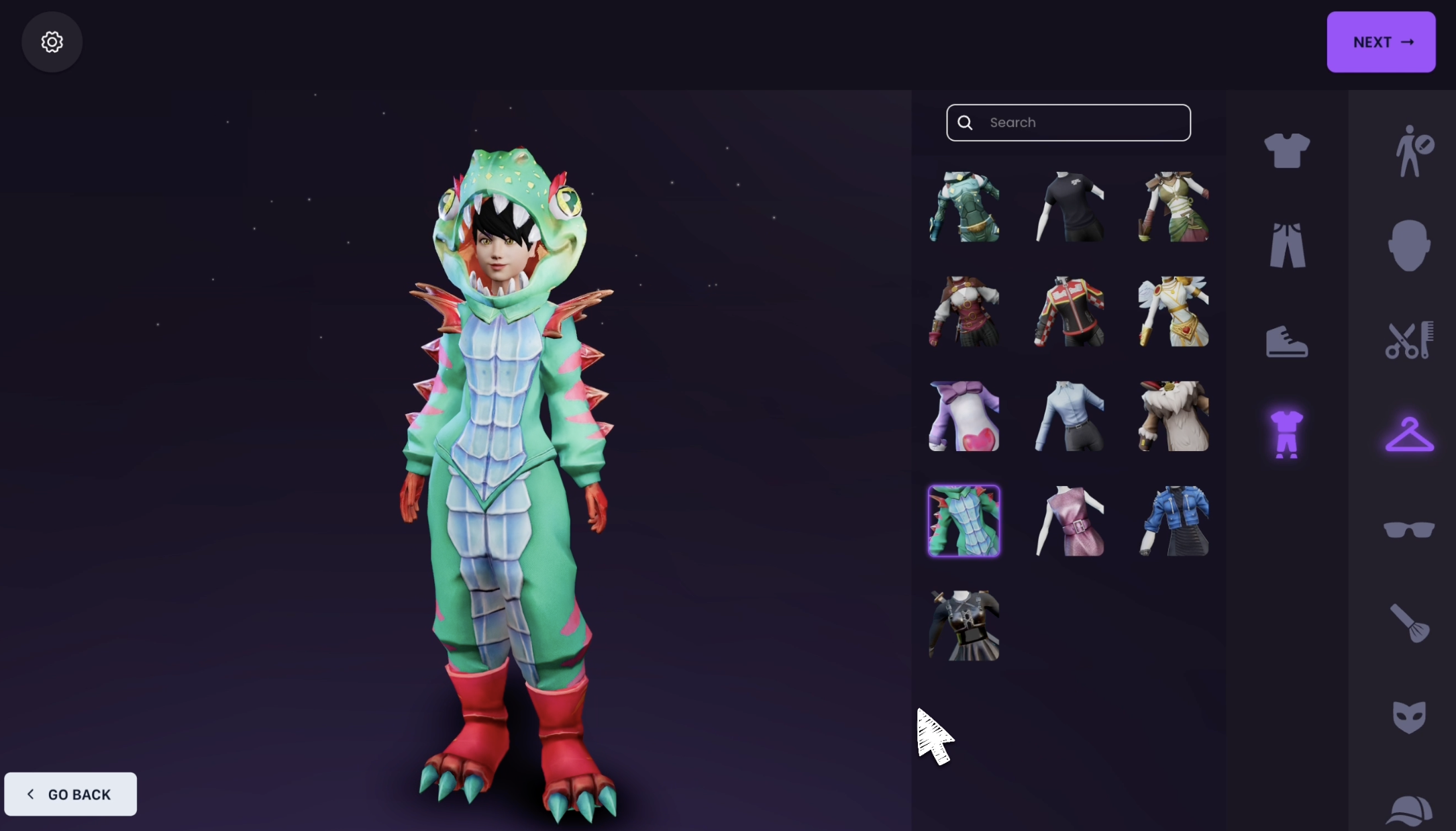
    Next, you'll be guided through customizing your avatar. This is your chance to make it truly yours by choosing a gender, adjusting physical features, and picking the outfit that best fits your style.
    <Frame>
      ![Avatar customization interface showing various options](https://s3.amazonaws.com/helpscout.net/docs/assets/685306b72e0550277aa9250e/images/6878ed8552724d3c54de9062/file-Q6M0LQjVdu.png)
    </Frame>
  </Step>

  <Step title="Save your avatar">
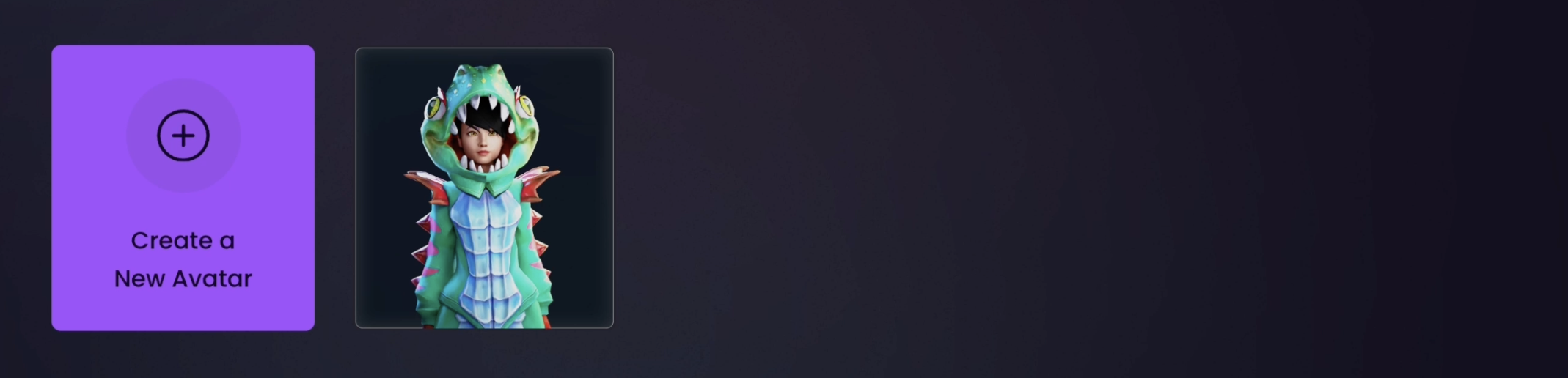
    Once you're happy with your avatar, click **Next** to save your virtual self.
    <Frame>
      ![Final avatar preview with Next button](https://s3.amazonaws.com/helpscout.net/docs/assets/685306b72e0550277aa9250e/images/6878edcb1fd2e3184b5c2fe5/file-jqWk6jdnO8.png)
    </Frame>
  </Step>
</Steps>

## Additional Customization

After your initial setup you can return to your profile anytime to make changes or try something new.

<Steps>
  <Step title="Access your profile">
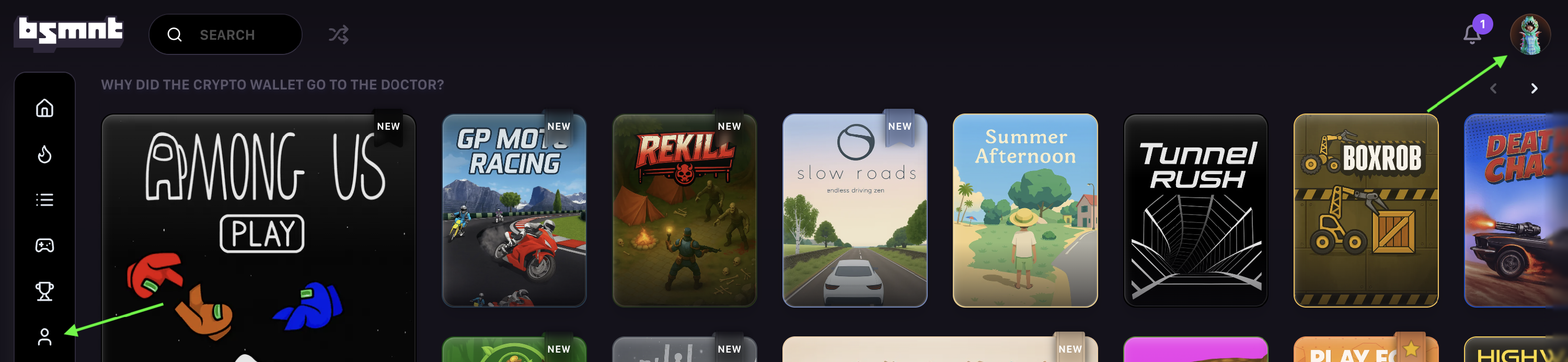
    From the Basement homepage click the profile icon on either the left or right side of the page to open your profile and begin editing.
    <Frame>
      ![Profile icons on Basement homepage](https://s3.amazonaws.com/helpscout.net/docs/assets/685306b72e0550277aa9250e/images/6878ef3752724d3c54de906e/file-kvphfoR7j2.png)
    </Frame>
  </Step>

  <Step title="Open customization options">
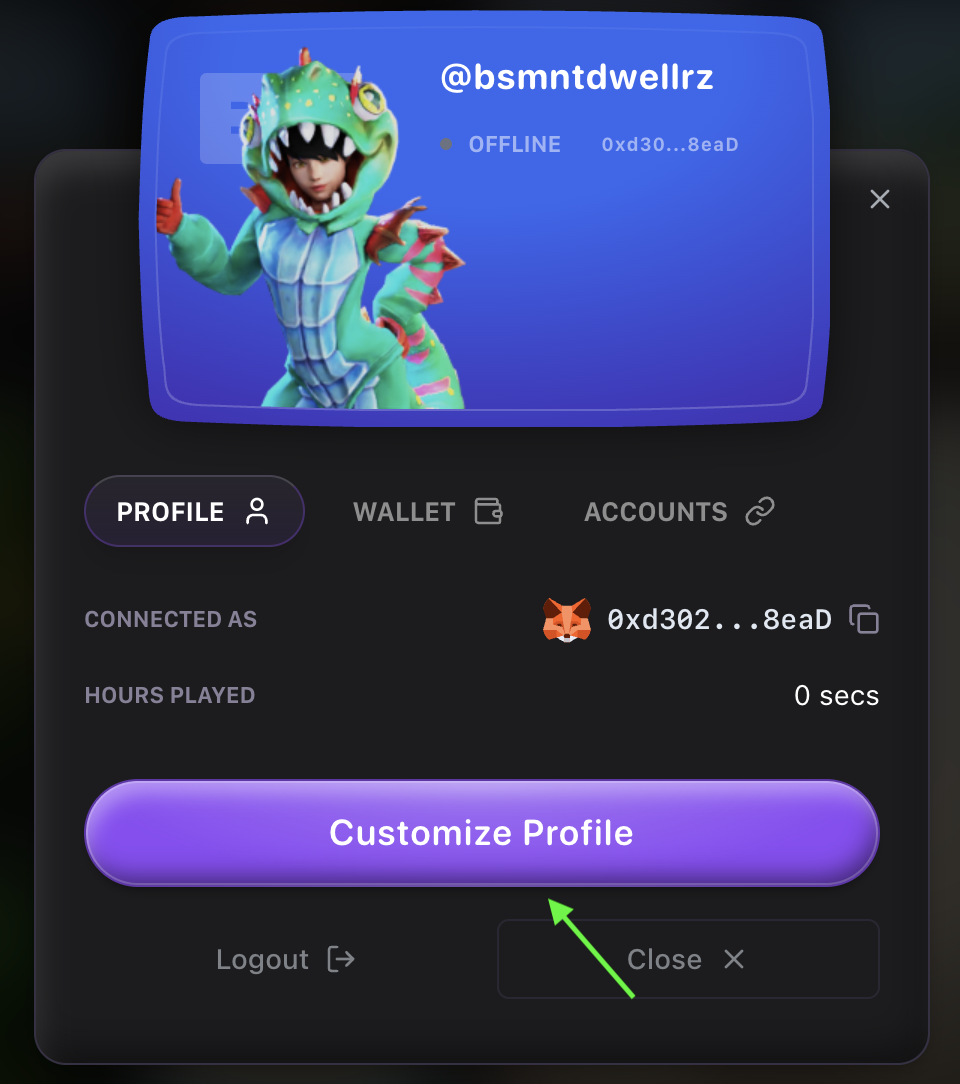
    Next, click **Customize Profile**.

    <Frame>
      ![Customize Profile button in profile menu](https://s3.amazonaws.com/helpscout.net/docs/assets/685306b72e0550277aa9250e/images/6878efb113d950405eff6e9d/file-4y3VMWALKJ.png)
    </Frame>
  </Step>
</Steps>

### Available Customization Options

**Username**
Change your public display name at any time

**Avatar**
Edit your avatar's appearance to refresh your look

**Express Yourself**
Add a custom hand-drawn signature and choose a profile theme that matches your vibe

<Tip>
  Want a quick walkthrough? Watch this short video to see each customization option in action:
</Tip>

<iframe className="w-full aspect-video rounded-xl" src="https://www.youtube.com/embed/UopTXe1ubes" title="Profile customization walkthrough" frameBorder="0" allow="accelerometer; autoplay; clipboard-write; encrypted-media; gyroscope; picture-in-picture" allowFullScreen />